class: title-slide, center, middle .top-left[ <img src="images/uo-logo2.png" width="100%" /> ] .top-right[ <img src="images/psy-logo.png" width="100%" /> ] # Data Visualization with {ggplot2} UO R Bootcamp 2025 --- background-image: url(images/hex/ggplot2.png) background-position: 90% 5% background-size: 10% # ggplot `{ggplot2}` is the tidyverse package for **data visualization** that can make beautiful, customizable, publication-ready plots -- It follows the **"grammar of graphics"**, creating graphics one layer at a time (like a painting) --- background-image: url(images/hex/palmerpenguins.png) background-position: 90% 5% background-size: 10% # Palmer penguins We're going to use the **Palmer Penguins** dataset as an example throughout our discussion of `{ggplot}`. .center[ <img src="images/penguins.png" width="60%" /> ] -- The dataset **penguins** comes from the `{palmerpenugins}` package, which you can download with `install.packages("palmerpenguins")` and load with `library(palmerpenguins)`. --- background-image: url(images/hex/palmerpenguins.png) background-position: 90% 5% background-size: 10% # Palmer penguins ``` r library(palmerpenguins) penguins ``` ``` ## # A tibble: 344 × 8 ## species island bill_length_mm bill_depth_mm flipper_length_mm body_mass_g ## <fct> <fct> <dbl> <dbl> <int> <int> ## 1 Adelie Torgersen 39.1 18.7 181 3750 ## 2 Adelie Torgersen 39.5 17.4 186 3800 ## 3 Adelie Torgersen 40.3 18 195 3250 ## 4 Adelie Torgersen NA NA NA NA ## 5 Adelie Torgersen 36.7 19.3 193 3450 ## 6 Adelie Torgersen 39.3 20.6 190 3650 ## 7 Adelie Torgersen 38.9 17.8 181 3625 ## 8 Adelie Torgersen 39.2 19.6 195 4675 ## 9 Adelie Torgersen 34.1 18.1 193 3475 ## 10 Adelie Torgersen 42 20.2 190 4250 ## # ℹ 334 more rows ## # ℹ 2 more variables: sex <fct>, year <int> ``` --- background-image: url(images/hex/ggplot2.png) background-position: 90% 5% background-size: 10% # {ggplot2} There are 3 components to making any plot. 1. The data set, including variables you want visually represent -- 2. Geoms or geometric shapes (e.g., bars, points, lines) -- 3. Aesthetic mappings (e.g., color, shape, transparency, location) -- .center[ <img src="images/ggplot_summary.png" width="40%" /> ] --- background-image: url(images/hex/ggplot2.png) background-position: 90% 5% background-size: 10% # Data set When creating a plot in `{ggplot2}`, the first thing you have to do is call the `ggplot()` function and tell it what data you want to graph. -- The function `ggplot()` takes `data` as its first argument. -- .panelset[ .panel[.panel-name[Code] ``` r ggplot(data = penguins) ``` ] .panel[.panel-name[Plot] <!-- --> ] ] --- background-image: url(images/hex/ggplot2.png) background-position: 90% 5% background-size: 10% # Geoms **Geoms** are geometric objects like points, bars, histograms, boxplots -- In order to paint a geom on our blank canvas, we need to tell `ggplot()` which geom we want to map -- Some popular geoms are `geom_histogram()` for histograms, `geom_bar()` for bar charts, `geom_point()` for points (e.g., for scatter plots), and`geom_boxplot()` for boxplots --- background-image: url(images/hex/ggplot2.png) background-position: 90% 5% background-size: 10% # Aesthetic mapping Each `geom()` function in `ggplot` takes a **mapping** argument. -- **Aesthetic mapping** allows us to assign aesthetic properties to the geom, e.g., location, color, size, transparency (different geoms have different options) --- background-image: url(images/hex/ggplot2.png) background-position: 90% 5% background-size: 10% # Geoms and aesthetic mapping We're going to call `ggplot()` again, and this time add the `geom_histogram()` **layer**, telling `ggplot()` to map the variable `flipper_length_mm` on the x-axis -- .panelset[ .panel[.panel-name[Code] ``` r penguins %>% ggplot() + geom_histogram(mapping = aes(x = flipper_length_mm)) ``` ] .panel[.panel-name[Plot] 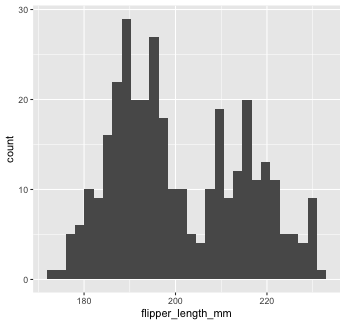<!-- --> ] ] --- background-image: url(images/hex/ggplot2.png) background-position: 90% 5% background-size: 10% # Mapping with geoms If we want to add a static property to a `geom()`, we need to do so outside of the `mapping` parameter. For example, we could change the number of bins... -- .panelset[ .panel[.panel-name[Code] ``` r penguins %>% ggplot() + geom_histogram(mapping = aes(x = flipper_length_mm), bins = 10) ``` ] .panel[.panel-name[Plot] 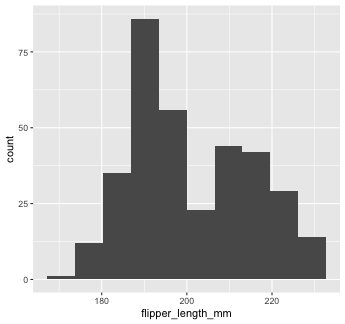<!-- --> ] ] --- background-image: url(images/hex/ggplot2.png) background-position: 90% 5% background-size: 10% # Mapping with geoms ...or make them a different color. We can change the color of 2D objects with the `fill` aesthetic -- .panelset[ .panel[.panel-name[Code] ``` r penguins %>% ggplot() + geom_histogram(mapping = aes(x = flipper_length_mm), fill = "turquoise") ``` ] .panel[.panel-name[Plot] 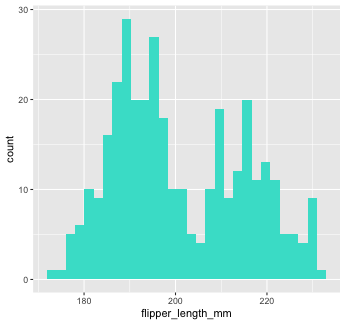<!-- --> ] ] --- background-image: url(images/hex/ggplot2.png) background-position: 90% 5% background-size: 10% # Mapping with geoms Now we'll use a different `geom`---we'll add a layer of points to our plot using `geom_point()` -- ``` r penguins %>% ggplot() + geom_point(mapping = aes(x = flipper_length_mm)) ``` ``` ## Error in `geom_point()`: ## ! Problem while setting up geom. ## ℹ Error occurred in the 1st layer. ## Caused by error in `compute_geom_1()`: ## ! `geom_point()` requires the following missing aesthetics: y. ``` --- background-image: url(images/hex/ggplot2.png) background-position: 90% 5% background-size: 10% # Mapping with geoms .smaller-font[We get an error, telling us that `geom_point()` requires the y-aesthetic. This makes sense---we need an x- and y-axis to define where points belong on a scatter plot. Let's add `bill_length_mm` as the y-axis] -- .panelset[ .panel[.panel-name[Code] ``` r penguins %>% ggplot() + geom_point(mapping = aes(x = flipper_length_mm, y = bill_length_mm)) ``` ] .panel[.panel-name[Plot] 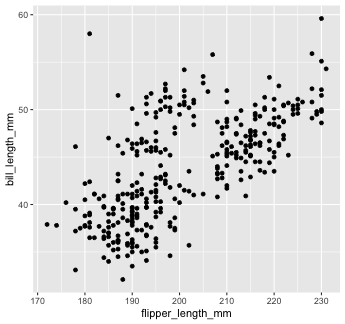<!-- --> ] ] --- background-image: url(images/hex/ggplot2.png) background-position: 90% 5% background-size: 10% # Mapping with geoms Let's find out if the relationship between `flipper_length_mm` and `bill_length_mm` relates to the species of penguin. We'll map `species` to the `color` aesthetic (similar to `fill`, but for 1D objects). -- .panelset[ .panel[.panel-name[Code] ``` r penguins %>% ggplot() + geom_point( mapping = aes(x = flipper_length_mm, y = bill_length_mm, color = species)) ``` ] .panel[.panel-name[Plot] <!-- --> ] ] --- background-image: url(images/hex/ggplot2.png) background-position: 90% 5% background-size: 10% # Mapping with geoms Notice that we included `color` **inside** our aesthetic mapping call (`mapping = aes()`) here, but not when we filled our histogram with the color turquoise earlier. -- This is the difference between mapping an aesthetic to **data** and just setting an aesthetic to some **value** (e.g., "turquoise"). -- This is a fairly common mistake, so let's take a look at an example --- background-image: url(images/hex/ggplot2.png) background-position: 90% 5% background-size: 10% # Mapping with geoms What happens if we tell `ggplot` to make our points turquoise but accidentally include that **inside** the `aes()` call? -- .panelset[ .panel[.panel-name[Code] ``` r penguins %>% ggplot() + geom_point(mapping = aes(x = flipper_length_mm, y = bill_length_mm, color = "turquoise")) ``` ] .panel[.panel-name[Plot] .pull-left[ <!-- --> ] .pull-right[ This is not what we want! `ggplot` is treating the value "turquoise" as if it were part of our data, which it isn't. ] ] ] --- class: yourturn # Your Turn 1 <div class="countdown" id="timer_b0320430" data-update-every="1" tabindex="0" style="right:0;bottom:0;"> <div class="countdown-controls"><button class="countdown-bump-down">−</button><button class="countdown-bump-up">+</button></div> <code class="countdown-time"><span class="countdown-digits minutes">05</span><span class="countdown-digits colon">:</span><span class="countdown-digits seconds">00</span></code> </div> 1. Create a scatter plot to visualize the relationship between `flipper_length_mm` and `bill_length_mm`. 1. Build on your plot above by adding an aesthetic to visualize the effect of `species`. Choose any aesthetic you’d like or play around with a few. What do they do? How might you use more than one aesthetic? *Note:* Options for aesthetics include `color`, `shape`, `size`, and `alpha`. --- class: solution # Solution ## Q1 .panelset[ .panel[.panel-name[Code] ``` r penguins %>% ggplot() + geom_point(aes(x = flipper_length_mm, y = bill_length_mm)) ``` ] .panel[.panel-name[Plot] <!-- --> ] ] --- class: solution # Solution ## Q2 (answers will vary...) .panelset[ .panel[.panel-name[Code] ``` r penguins %>% ggplot() + geom_point(aes(x = flipper_length_mm, y = bill_length_mm, color = species, shape = species), alpha = 0.5, size = 3) ``` ] .panel[.panel-name[Plot] <!-- --> ] ] --- background-image: url(images/hex/ggplot2.png) background-position: 90% 5% background-size: 10% # Mapping with geoms We could also make separate graphs for each `species` using `facet_wrap()`. We do this by passing a one-sided formula to `facet_wrap()`. -- .panelset[ .panel[.panel-name[Code] ``` r penguins %>% ggplot() + geom_point(aes(x = flipper_length_mm, y = bill_length_mm)) + facet_wrap(~species) ``` ] .panel[.panel-name[Plot] 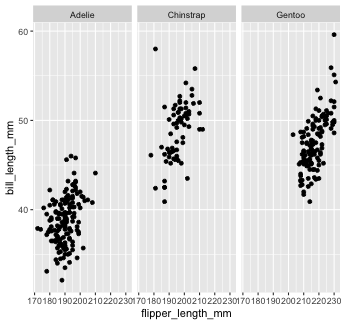<!-- --> ] ] --- background-image: url(images/hex/ggplot2.png) background-position: 90% 5% background-size: 10% # Mapping with geoms Another thing we often want to do is to add a line over our scatterplot to describe the linear relationship between variables. We can do this by adding a `geom_smooth()` layer to our plot. -- .panelset[ .panel[.panel-name[Code 1] ``` r penguins %>% ggplot() + geom_point(aes(x = flipper_length_mm, y = bill_length_mm, color = species)) + geom_smooth(aes(x = flipper_length_mm, y = bill_length_mm), color = "black") ``` ] .panel[.panel-name[Plot 1] .pull-left[ 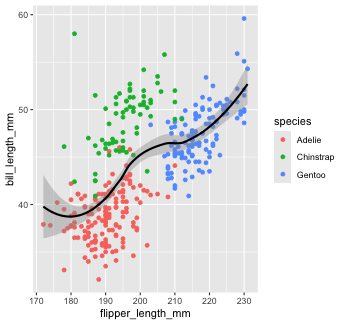<!-- --> ] .pull-right[ Note that "loess" is the default function for `geom_smooth()`. Learn more on that [here](http://www.statisticshowto.com/lowess-smoothing/). ] ] .panelset[ .panel[.panel-name[Code 2] .smaller-font[You can change that by setting the `method` argument in `geom_smooth()`. Let's change it to our old friend linear regression or "lm".] ``` r penguins %>% ggplot() + geom_point(aes(x = flipper_length_mm, y = bill_length_mm, color = species)) + geom_smooth(aes(x = flipper_length_mm, y = bill_length_mm), color = "black", method = "lm") ``` ] .panel[.panel-name[Plot 2] 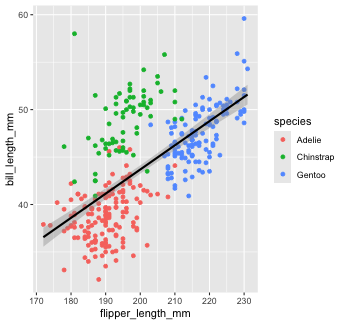<!-- --> ] ] ] --- background-image: url(images/hex/ggplot2.png) background-position: 90% 5% background-size: 10% # Global aesthetic mapping Our code so far has been getting rather inefficient. We're specifying the x and y axis for each `geom_*` call. -- Instead, we can use **global** aesthetic mappings, which are specified in the `ggplot()` call. -- Global mappings are inherited by each layer unless they're overwritten. --- background-image: url(images/hex/ggplot2.png) background-position: 90% 5% background-size: 10% # Global aesthetic mapping Let's re-make our previous plot using global aesthetic mapping. -- .panelset[ .panel[.panel-name[Code] ``` r penguins %>% ggplot(aes(x = flipper_length_mm, y = bill_length_mm))+ geom_point(aes(color = species)) + geom_smooth(color = "black", method = "lm") ``` ] .panel[.panel-name[Plot] 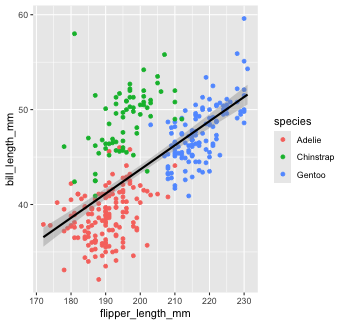<!-- --> ] .panel[.panel-name[Explanation] So...what do we put in global aesthetic mapping and what do we put in the aesthetic mapping of specific geoms? You want to put anything in the global mapping that you want *every layer to inherit* (or at least the majority of them). In the code above, I defined the `x` and `y` aesthetics globally because I want those the same in every `geom`. However, I *don't* define the `color` aesthetic globally, because `color` is geom-specific in this case. ] ] --- background-image: url(images/hex/ggplot2.png) background-position: 90% 5% background-size: 10% # Global aesthetic mapping Let's take a look at the previous example again, but this time with `color` in the global aesthetic... -- .panelset[ .panel[.panel-name[Code 1] ``` r penguins %>% ggplot(aes(x = flipper_length_mm, y = bill_length_mm, color = species))+ geom_point() + # inherit global geom_smooth(method = "lm") #inherit global ``` ] .panel[.panel-name[Plot 1] .pull-left[ 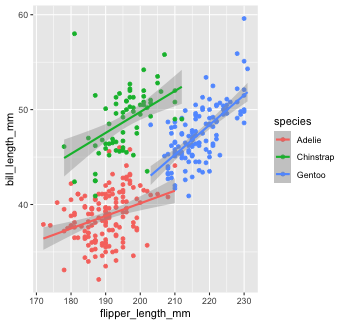<!-- --> ] .pull-right[ As you can see, global aesthetic mapping gets inherited by every layer. We can override this by providing a different aesthetic mapping in individual `geom()` calls... ] ] .panel[.panel-name[Code 2] ``` r penguins %>% ggplot(aes(x = flipper_length_mm, y = bill_length_mm, color = species))+ geom_point() + #inherit global geom_smooth(method = "lm", color = "black") #override global `color` ``` ] .panel[.panel-name[Plot 2] 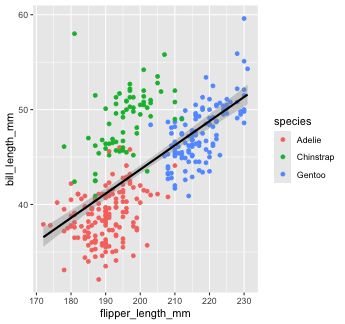<!-- --> ] ] --- class: yourturn # Your Turn 2 <div class="countdown" id="timer_0fbb0a9b" data-update-every="1" tabindex="0" style="right:0;bottom:0;"> <div class="countdown-controls"><button class="countdown-bump-down">−</button><button class="countdown-bump-up">+</button></div> <code class="countdown-time"><span class="countdown-digits minutes">06</span><span class="countdown-digits colon">:</span><span class="countdown-digits seconds">00</span></code> </div> 1. Take a look at the `diamonds` data set that is loaded as part of the `{ggplot2}` package. Use `glimpse()`, `str()`, `head()`, or any other data viewing function we've previously discussed. 1. Fill in the blanks in the code to re-create the plot below. *Note*: This plot uses a geom we haven't seen yet called `geom_bar()`, which I've filled in for you. <img src="images/ggplot2_yourturn_figure.png" width="50%" style="display: block; margin: auto;" /> --- class: solution # Solution .panelset[ .panel[.panel-name[Q1] ``` r glimpse(diamonds) ``` ``` ## Rows: 53,940 ## Columns: 10 ## $ carat <dbl> 0.23, 0.21, 0.23, 0.29, 0.31, 0.24, 0.24, 0.26, 0.22, 0.23, 0.… ## $ cut <ord> Ideal, Premium, Good, Premium, Good, Very Good, Very Good, Ver… ## $ color <ord> E, E, E, I, J, J, I, H, E, H, J, J, F, J, E, E, I, J, J, J, I,… ## $ clarity <ord> SI2, SI1, VS1, VS2, SI2, VVS2, VVS1, SI1, VS2, VS1, SI1, VS1, … ## $ depth <dbl> 61.5, 59.8, 56.9, 62.4, 63.3, 62.8, 62.3, 61.9, 65.1, 59.4, 64… ## $ table <dbl> 55, 61, 65, 58, 58, 57, 57, 55, 61, 61, 55, 56, 61, 54, 62, 58… ## $ price <int> 326, 326, 327, 334, 335, 336, 336, 337, 337, 338, 339, 340, 34… ## $ x <dbl> 3.95, 3.89, 4.05, 4.20, 4.34, 3.94, 3.95, 4.07, 3.87, 4.00, 4.… ## $ y <dbl> 3.98, 3.84, 4.07, 4.23, 4.35, 3.96, 3.98, 4.11, 3.78, 4.05, 4.… ## $ z <dbl> 2.43, 2.31, 2.31, 2.63, 2.75, 2.48, 2.47, 2.53, 2.49, 2.39, 2.… ``` ] .panel[.panel-name[Q2] .pull-left[ ``` r diamonds %>% ggplot(aes(x = cut, y = price, fill = color)) + geom_bar(position = "dodge", stat = "summary", fun = "mean") + facet_wrap(~clarity) + labs(title = "Diamond Price by Cut, Color, and Clarity", x = "Cut", y = "Price", fill = "Color") ``` ] .pull-right[ 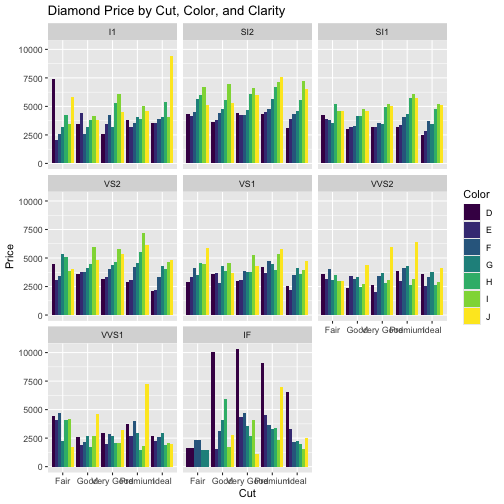<!-- --> ] ] ] --- background-image: url(images/hex/ggplot2.png) background-position: 90% 5% background-size: 10% # Labels and themes You can do a TON more customization of your plots than what we've covered so far. The possibilities with `{ggplot2}` really are endless! -- For example, you can change your axis labels, change the theme of the plot, etc... --- background-image: url(images/hex/ggplot2.png) background-position: 90% 5% background-size: 10% # Examples 🤯 .footnote[Image from [Eric Ekholm](https://github.com/ekholme/tidytuesday#most-recent-finished-contribution)] <img src="images/ggplot_ex_1.png" width="60%" style="display: block; margin: auto;" /> --- background-image: url(images/hex/ggplot2.png) background-position: 90% 5% background-size: 10% # Examples 🤯 .footnote[Image from [Eric Ekholm](https://github.com/ekholme/tidytuesday#most-recent-finished-contribution)] <img src="images/ggplot_ex_2.jpg" width="60%" style="display: block; margin: auto;" /> --- background-image: url(images/hex/ggplot2.png) background-position: 90% 5% background-size: 10% # Examples 🤯 .footnote[Image from [Georgios Karamanis](https://github.com/gkaramanis/tidytuesday#highlights-click-on-image-to-go-to-code-)] <img src="images/ggplot_ex_3.png" width="60%" style="display: block; margin: auto;" /> --- background-image: url(images/hex/ggplot2.png) background-position: 90% 5% background-size: 10% # Examples 🤯 .footnote[Image from [Georgios Karamanis](https://github.com/gkaramanis/tidytuesday#highlights-click-on-image-to-go-to-code-)] <img src="images/ggplot_ex_4.png" width="40%" style="display: block; margin: auto;" /> --- background-image: url(images/hex/ggplot2.png) background-position: 90% 5% background-size: 10% # Examples 🤯 .footnote[Image from [Jake Kaupp](https://github.com/jkaupp/tidytuesdays)] <img src="images/ggplot_ex_5.jpg" width="80%" style="display: block; margin: auto;" /> --- background-image: url(images/hex/ggplot2.png) background-position: 90% 5% background-size: 10% # Examples 🤯 .footnote[Image from [Georgios Karamanis](https://github.com/gkaramanis/tidytuesday#highlights-click-on-image-to-go-to-code-)] <img src="images/ggplot_ex_6.jpg" width="80%" style="display: block; margin: auto;" /> --- background-image: url(images/hex/ggplot2.png) background-position: 90% 5% background-size: 10% # Examples 🤯 .footnote[Image from [Torsten Sprenger](https://github.com/spren9er/tidytuesday)] <img src="images/ggplot_ex_7.jpeg" width="60%" style="display: block; margin: auto;" /> --- background-image: url(images/hex/ggplot2.png) background-position: 90% 5% background-size: 10% # Examples 🤯 .footnote[Image from [Ariane Aumaitre](https://twitter.com/ariamsita?s=20&t=e0M_tAtBxKKKdjlWpykazw)] <img src="images/ggplot_ex_8.jpeg" width="80%" style="display: block; margin: auto;" /> --- background-image: url(images/hex/ggplot2.png) background-position: 90% 5% background-size: 10% # Examples 🤯 .footnote[Image from [Cara Thompson](https://github.com/cararthompson/tidytuesdays)] <img src="images/ggplot_ex_9.jpeg" width="60%" style="display: block; margin: auto;" /> --- background-image: url(images/hex/ggplot2.png) background-position: 90% 5% background-size: 10% # Examples 🤯 .footnote[Image from [Cameron S. Kay](https://twitter.com/cameronskay/status/1552003928295817217/photo/1) 🙃] <img src="images/ggplot_ex_10.jpeg" width="100%" /> --- class: yourturn, center, middle # Q & A <div class="countdown" id="timer_77eaf5e0" data-update-every="1" tabindex="0" style="right:0;bottom:0;"> <div class="countdown-controls"><button class="countdown-bump-down">−</button><button class="countdown-bump-up">+</button></div> <code class="countdown-time"><span class="countdown-digits minutes">05</span><span class="countdown-digits colon">:</span><span class="countdown-digits seconds">00</span></code> </div> --- class: yourturn, center, middle # Break! <div class="countdown" id="timer_15902a6f" data-update-every="1" tabindex="0" style="right:0;bottom:0;"> <div class="countdown-controls"><button class="countdown-bump-down">−</button><button class="countdown-bump-up">+</button></div> <code class="countdown-time"><span class="countdown-digits minutes">15</span><span class="countdown-digits colon">:</span><span class="countdown-digits seconds">00</span></code> </div>